compound interest
How to Calculate Compound Interest in Excel: FV, RATE and a Ready Template
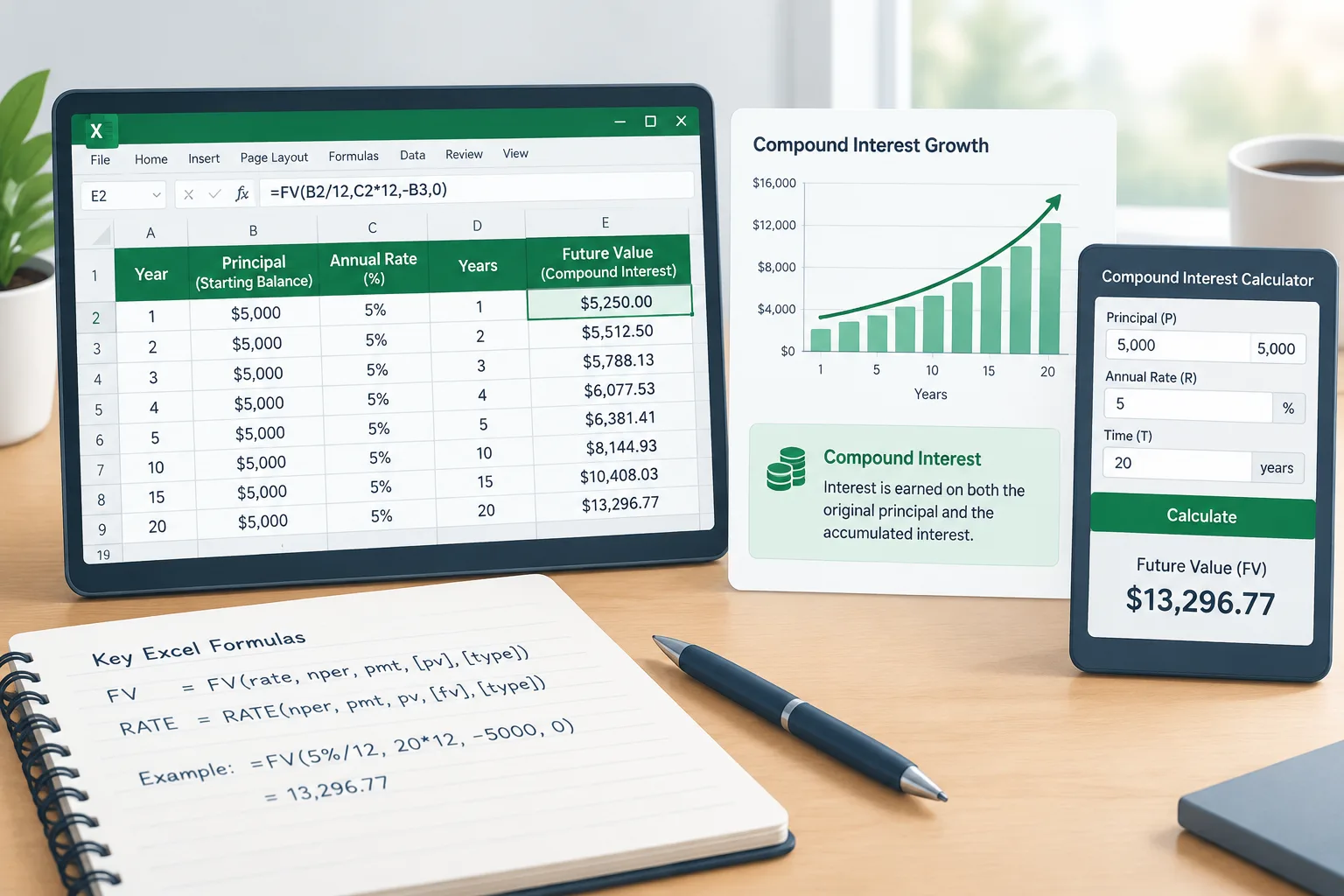
Learning how to calculate compound interest in Excel helps you estimate how a balance changes when interest is added to the original amount and previous interest over time. This guide explains what compound interest means, which Excel formulas to use, how to build a simple template, and how to check results with a calculator. It is useful for students, spreadsheet users, and anyone organizing financial calculations. You can also compare your spreadsheet result with the compound interest calculator on Calculator Lists.
What Is Compound Interest and Why Use Excel?
Compound interest is a method of calculating interest where the accumulated interest becomes part of the balance used for future calculations. Unlike simple interest, which only applies interest to the original principal, compound interest considers both the starting amount and previously added interest.
Excel is commonly used for compound interest calculations because it allows users to change assumptions quickly. A spreadsheet can show how different interest rates, time periods, or compounding schedules affect a future value. It can also create a reusable template for repeated calculations.
Compound interest calculations usually include four main inputs:
- Principal ((P)): the starting amount.
- Annual interest rate ((r)): the yearly interest rate expressed as a decimal.
- Number of compounding periods per year ((n)): how often interest is added.
- Time ((t)): the number of years.
The result is a mathematical estimate based on the inputs provided. It does not predict future financial performance or guarantee any outcome.
Compound Interest Formula in Excel
The standard compound interest formula is:
Where:
- (A) is the future balance.
- (P) is the initial principal.
- (r) is the annual interest rate.
- (n) is the number of compounding periods each year.
- (t) is the number of years.
For example, suppose you start with $1,000, use an annual interest rate of 5%, compound interest yearly, and calculate for 10 years.
The inputs are:
- (P = 1000)
- (r = 0.05)
- (n = 1)
- (t = 10)
The formula becomes:
The calculation gives:
In Excel, the same calculation can be written as:
=1000*(1+5%)^10
This example only demonstrates the calculation method. Actual account values can differ because real-world financial products may include fees, taxes, changing rates, or different terms.
Using the FV Function for Compound Interest in Excel
Excel includes the FV function, which is designed for future value calculations. The FV function is often used for compound interest because it can handle regular deposits as well as a starting balance.
The basic syntax is:
=FV(rate, nper, pmt, pv, type)
The inputs mean:
rate: interest rate per period.nper: total number of periods.pmt: regular payment amount per period.pv: present value or starting amount.type: when payments are made.
For a $1,000 starting balance earning 5% annually for 10 years with no extra payments, enter:
=FV(5%,10,0,-1000)
The negative sign before 1000 represents the initial cash outflow convention used by Excel. The returned value is approximately $1,628.89.
For monthly compounding, convert the annual rate and years into monthly periods.
Example:
- Starting balance: $1,000
- Annual rate: 5%
- Monthly compounding: 12 periods per year
- Time: 10 years
The formula is:
In Excel:
=FV(5%/12,12*10,0,-1000)
This produces an estimate of the balance after monthly compounding.
Creating an Excel Compound Interest Template Step by Step
A simple spreadsheet template can make future calculations easier.
Step 1: Create input cells
Create labels for:
- Initial balance
- Annual interest rate
- Years
- Compounding frequency
- Future value
Place each input in a separate cell so values can be updated without rewriting formulas.
Step 2: Enter the compound interest formula
If your cells contain:
- A1: initial balance
- A2: annual rate
- A3: years
- A4: compounding periods
Use:
=A1(1+A2/A4)^(A4A3)
This creates a reusable compound interest Excel formula.
Step 3: Add monthly calculations
For monthly compound interest in Excel, set the compounding frequency cell to 12. The same formula can then calculate monthly compounding without creating a separate worksheet.
Step 4: Check your result
Use a separate calculation method to verify the spreadsheet. The financial calculator tools on Calculator Lists can help compare results using transparent formulas.
Compound Interest Excel Formula vs FV Function
Both methods can calculate future value, but they serve slightly different purposes.
| Method | Best use | Main benefit |
|---|---|---|
| Direct formula | Learning the math | Shows every calculation step |
| FV function | Reusable financial models | Handles payment schedules easily |
| Template spreadsheet | Repeated estimates | Allows quick changes to inputs |
| Online calculator | Quick checking | Avoids manual spreadsheet setup |
A direct formula is useful when learning how compound interest works. The FV function is useful when building more flexible models with regular contributions.
For related calculations, you can also explore the future value calculator and interest calculator.
Common Mistakes and Calculation Limits
Confusing annual and periodic rates
A common mistake is using an annual interest rate while also applying monthly periods. When compounding monthly, the annual rate usually needs to be divided by 12 for the periodic rate.
Forgetting the number of periods
The total number of periods is the number of compounding periods per year multiplied by the number of years. A 10-year monthly calculation uses 120 periods, not 10.
Ignoring fees and taxes
A mathematical compound interest model may not include account fees, taxes, or changing conditions. Always check the assumptions behind any calculation.
Treating estimates as guarantees
Excel formulas show possible outcomes based on entered assumptions. They do not guarantee future results or represent financial advice.
Frequently Asked Questions About How to Calculate Compound Interest in Excel
How to calculate compound interest in Excel without the FV function?
You can use the standard compound interest Excel formula. Enter the principal, interest rate, compounding frequency, and time period, then apply (A = P(1+r/n)^{nt}). This approach makes each part of the calculation visible.
What is the FV function compound interest formula in Excel?
The FV function compound interest formula uses Excel's future value calculation. A basic example is =FV(rate, periods, payment, present value). It is useful when you need to include regular payments or a starting balance.
How do I calculate monthly compound interest in Excel?
For monthly compound interest in Excel, divide the annual interest rate by 12 and multiply the number of years by 12. For example, use =FV(5%/12,12*10,0,-1000) for a monthly calculation example.
Is there an Excel compound interest template I can reuse?
Yes. You can create a simple template with input cells for principal, rate, years, and compounding frequency. A reusable spreadsheet makes it easier to test different assumptions.
Does Excel compound interest show actual future returns?
No. Excel only calculates the result based on the numbers entered. Real-world outcomes may change because rates, costs, taxes, and other conditions may affect the final amount.
Summary
Knowing how to calculate compound interest in Excel helps you understand the relationship between starting balance, interest rate, time, and compounding frequency. The direct formula explains the math, while the FV function provides a convenient spreadsheet method. By using clear inputs and checking assumptions, you can create reliable calculation worksheets for educational and planning purposes.
Use the Calculator Lists compound interest calculator to quickly verify your Excel results with a transparent calculation approach.
Looking for more tools?
Try our free Free Calculators